Share
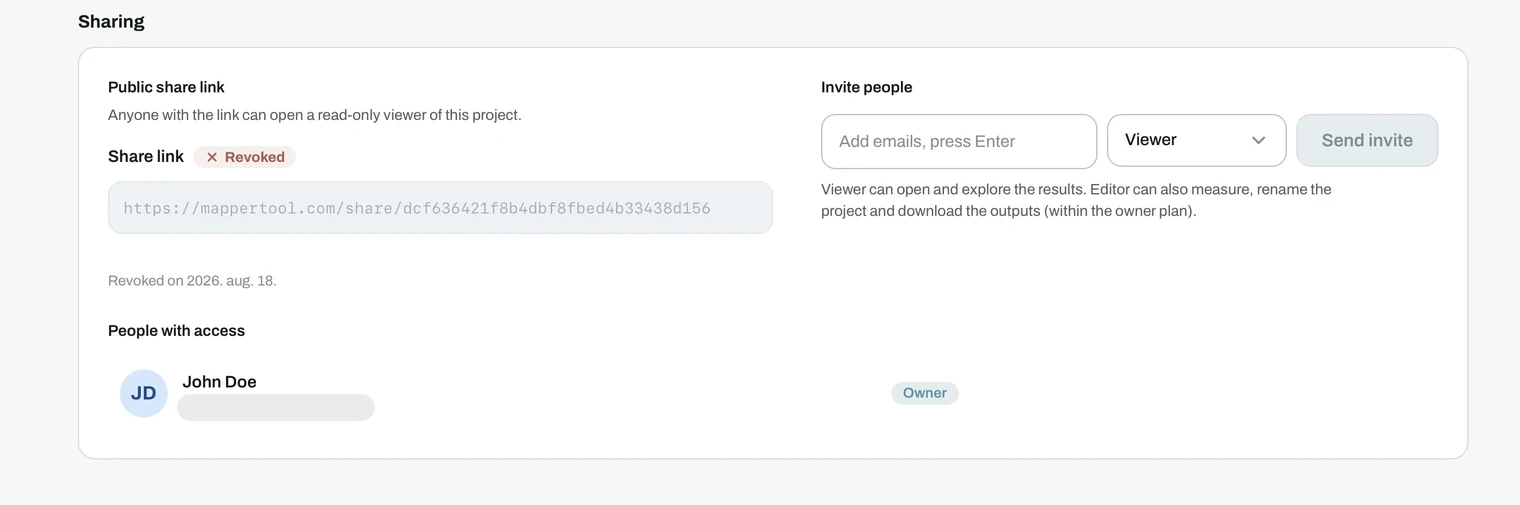
Sharing is handled from the Sharing tab in the viewer, and from the Share action on the project card. Both open the same panel.
Two roles
Both sharing methods use the same two roles.
- Viewer. Can open and explore the results.
- Editor. Can also measure, rename the project and download the outputs, within the owner's plan.
Share link
A link anyone can open, without an individual invitation. You choose which role the link grants, so it can hand out either view-only access or full editor rights.
- Revoke it at any time. The panel then shows the link as revoked, with the date, and the URL stops working for everyone holding it.
Anyone holding the link gets in with the role you set on it. Only give a link editor rights when you are comfortable with everyone who might receive it being able to download and rename.
Inviting people by email
Type one or more email addresses, press Enter after each, pick the role and send the invite. Access is then tied to a person rather than to a URL.
What happens next depends on the recipient:
- Already registered. The project appears on their dashboard straight away, under the Shared with me filter.
- Not registered yet. They are asked to create an account first, and the project lands on their dashboard as soon as they do.
Who has access

The People with access list shows every person the project is shared with, their email address and their role, with the owner marked. Remove someone and their access ends immediately.
Storage still applies
A shared project follows the same lifecycle as any other. It is removed when its expiry countdown ends, and every share stops working with it.
Tell clients to download what they need while their access lasts. See managing projects.