Dashboard
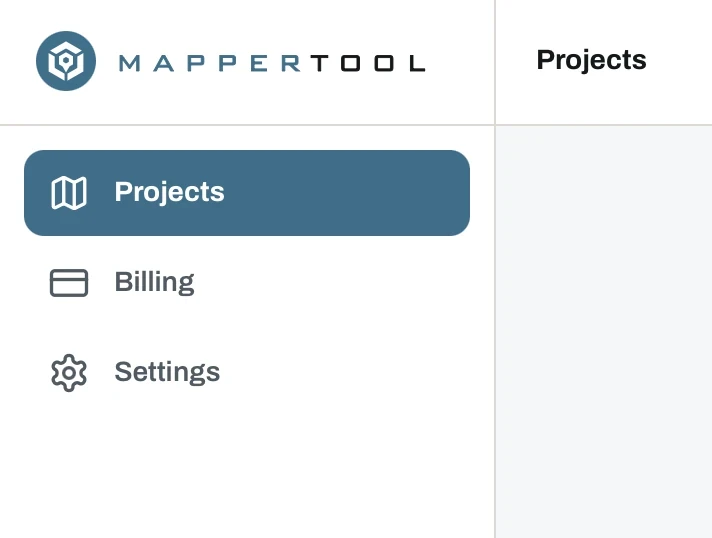
The dashboard is where all your projects live. The app has three sections in the left sidebar: Projects for your work, Billing for your plan and invoices, and Settings for your profile and preferences.
The three views
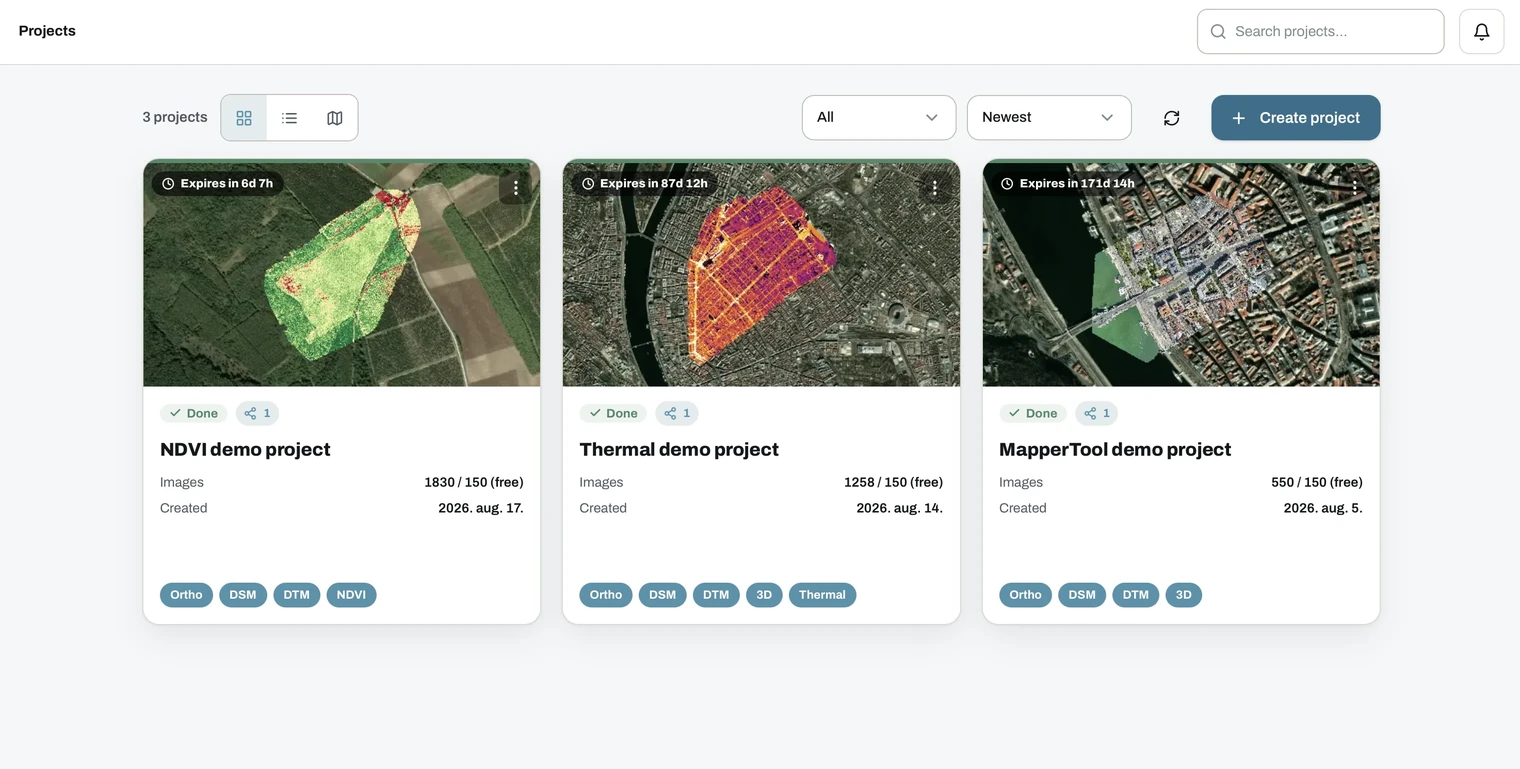
Switch between them with the icons next to the project count.
Card view is the default. Each project is a card with its thumbnail, status, name, image count against your plan limit, creation date, the outputs it produced and an expiry countdown on the thumbnail.
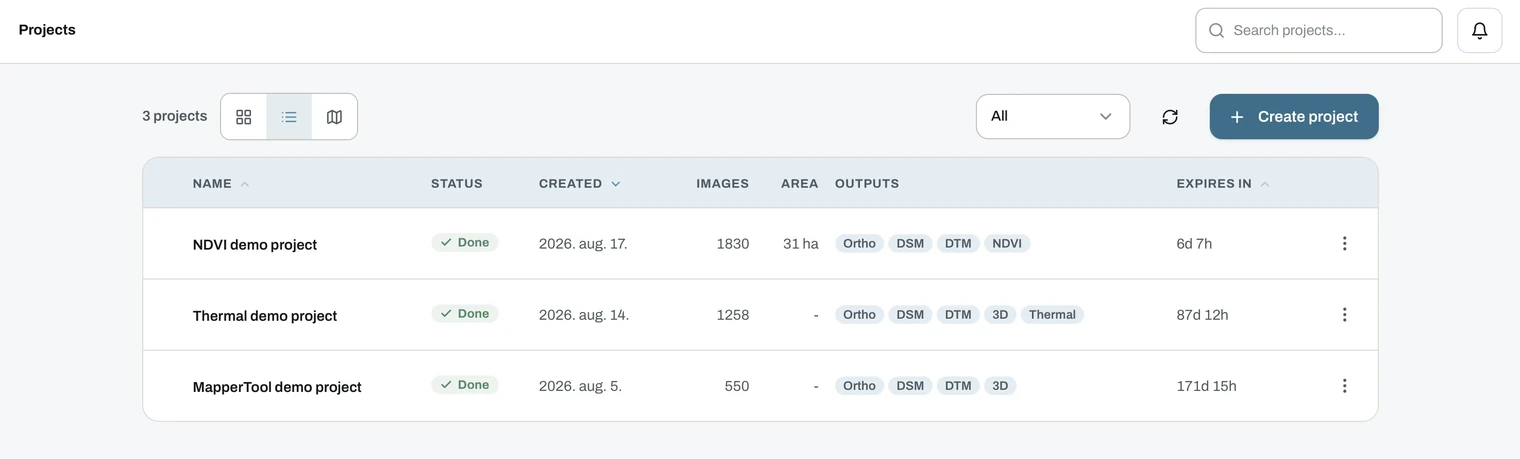
List view is a compact table with name, status, creation date, image count, covered area in hectares, outputs and time left. Sort by clicking a column header.
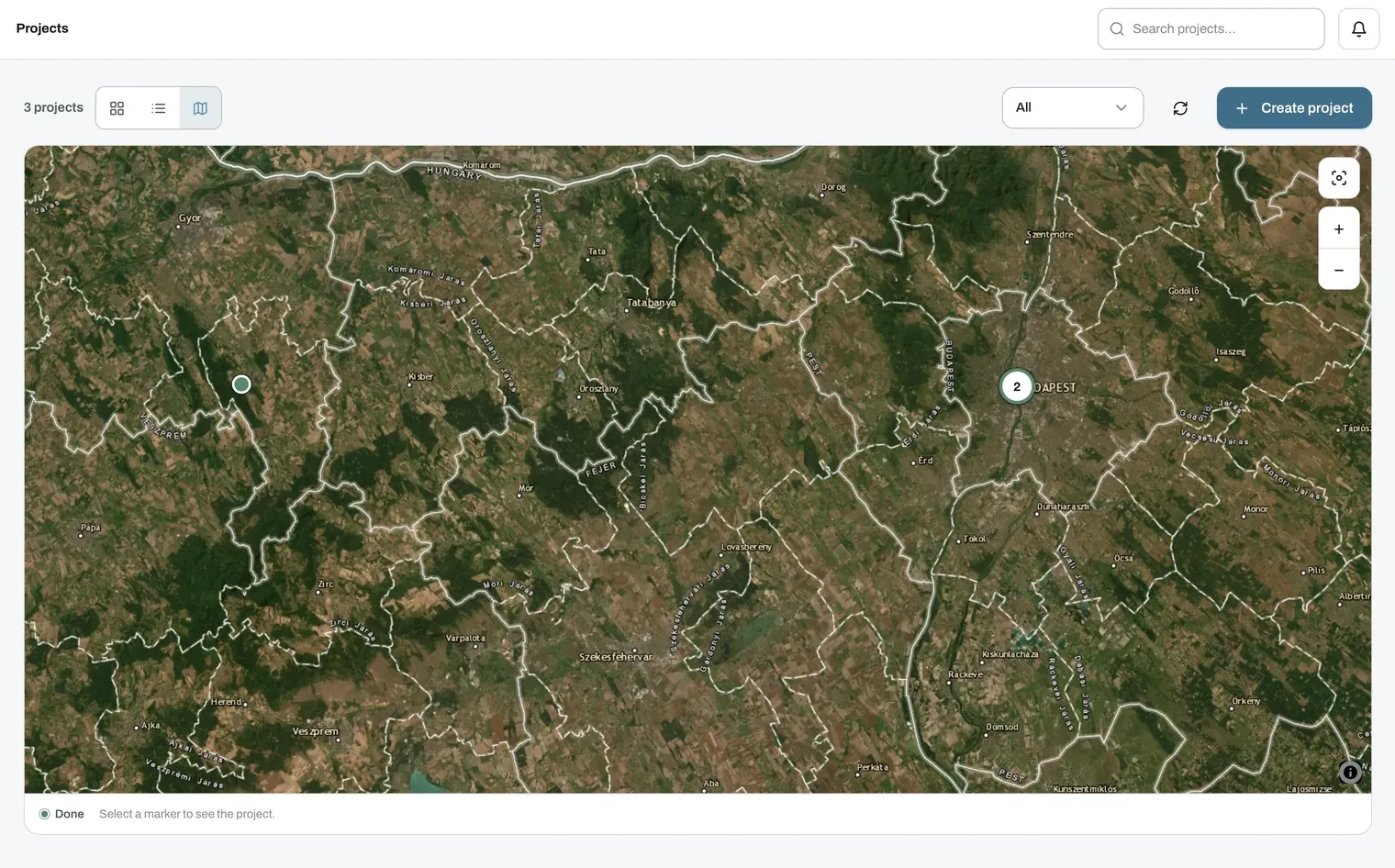
Map view places each project at its real location, with status-coloured markers. Nearby projects group into a cluster with a count. Click a marker to open the project.
Finding a project
- Search by project name from the box in the top bar.
- Filter by state: Draft, Queued, Processing, Done, Failed, Shared with me or Trash.
- Sort the list, newest first by default.
- Refresh to pull the latest status without reloading the page.
- Create project starts a new one.
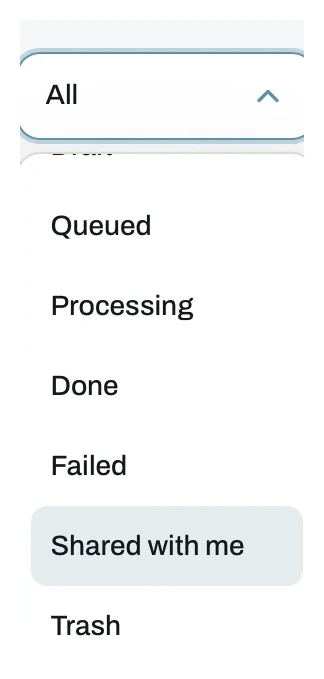
The filter is the fastest way to narrow a long list. Shared with me collects the projects other people gave you access to, and Trash holds the ones you deleted in the last seven days.
Folders
Search and filters work on one project at a time. Folders work on the whole dashboard, so a long list stays readable without renaming anything.
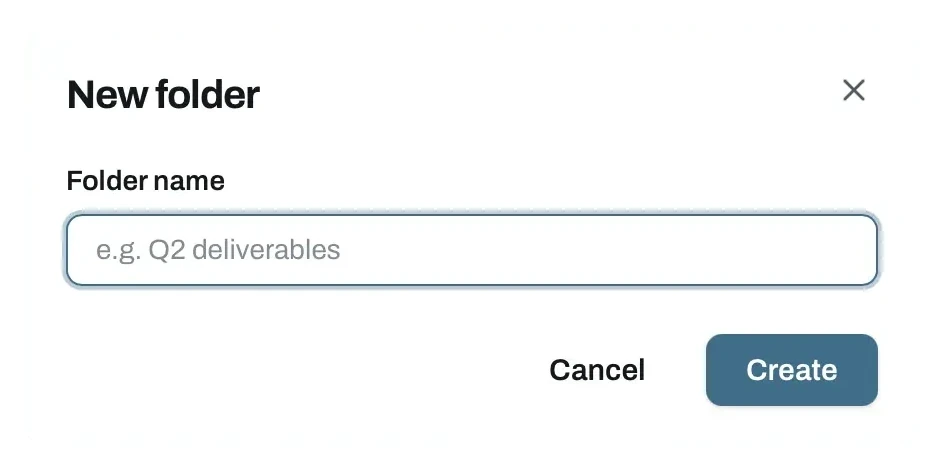
New folder asks for a name and nothing else. Group by client, by site, by season, whatever matches how you work.
Folders sit at the top of the project list, above the loose projects. Each one shows how many projects it holds, and opens with a click.
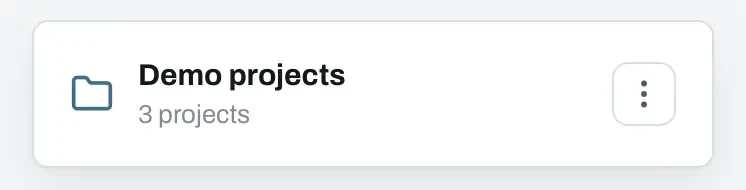
Drag and drop is how projects move. Pick up a project card and drop it on a folder to file it, or drag it back out to the main list. Nothing is copied and nothing is renamed, so the project itself is untouched.
The folder's own menu handles the rest, renaming it and deleting it.
Deleting a folder does not delete what is inside it. The projects return to the main list, with their expiry countdowns unchanged.
Folders are a view over your own dashboard. They do not change who can see a project, and they are not visible to the people you shared it with.
Status colours
Every project carries a colour-coded status.
- Draft Created but not yet processed. Images may still be uploading, or you have not started the job.
- Queued Waiting for a free render node. Your position in the queue is shown.
- Processing The job is running, with a percentage and the current step.
- Done Finished. The card shows a thumbnail and the project opens in the viewer.
- Failed Something went wrong. You can run the job again from the project.
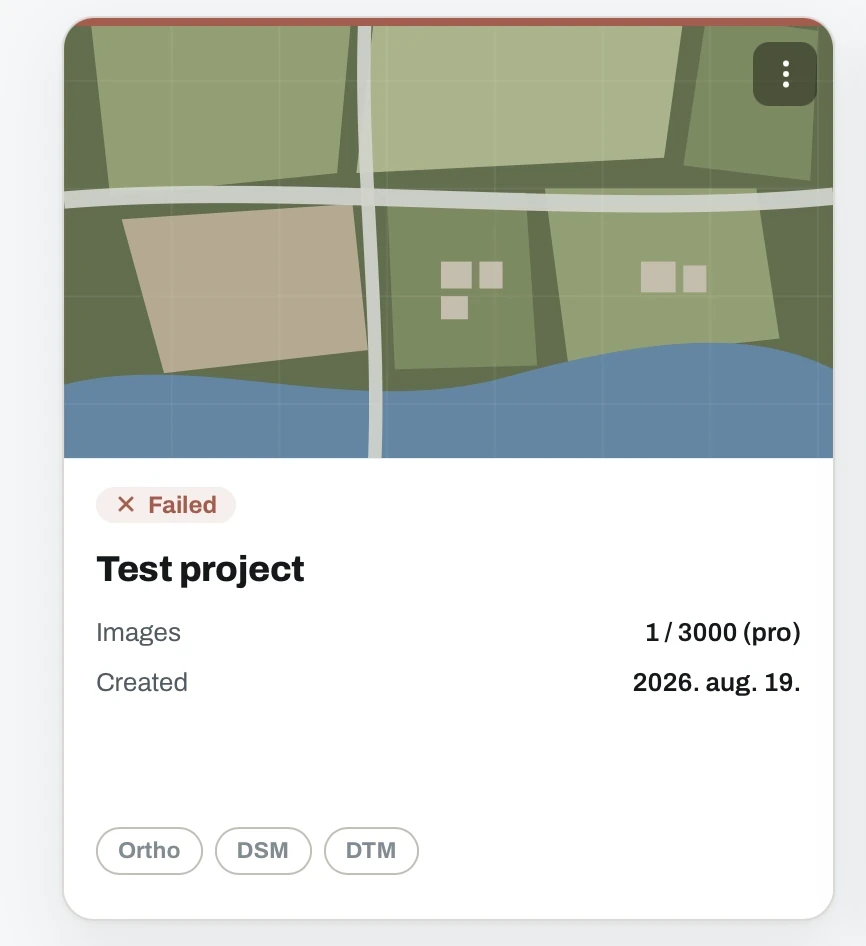
Every card carries an actions menu in the top right corner with Open, Project details, Rename, Share and Delete.
A failed job is not lost. The images stay uploaded, so you can start the job again from the project. See managing projects.
What queueing means
Processing runs on a limited number of render nodes. When more jobs arrive than the nodes can handle at once, new jobs wait in line and start automatically as capacity frees up.
- Queueing only happens when the system is busy. Most jobs start straight away.
- Your queue position is visible on the project.
- Queue time is not processing time. A job at position 4 has not started yet.
- Higher plans get priority. On a busy system, a Plus or Pro job moves ahead of Free jobs in the queue.
You do not need to keep the page open. The job starts, runs and finishes on its own.
Notifications
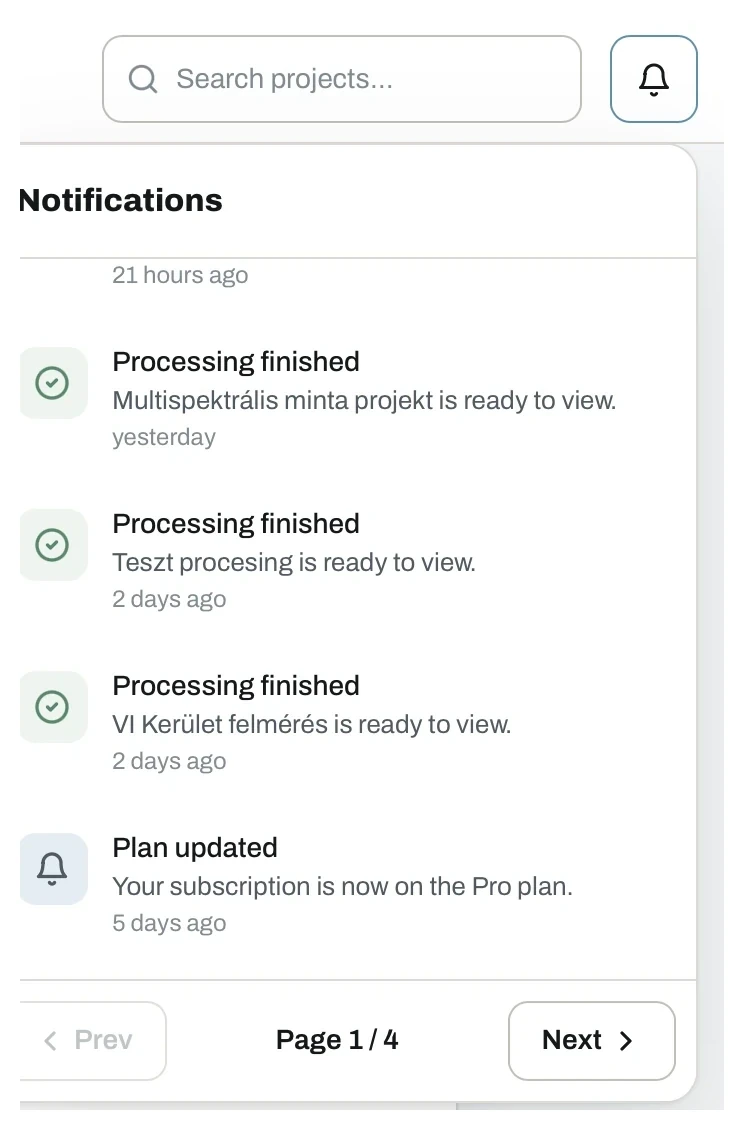
The bell in the top bar collects everything that happened to your projects: processing finished, plan changes and project expiry warnings.
The list is paged, so older entries stay reachable. The same events can also reach you by email, which you control in settings.
Expiry countdown
Each project shows how long it stays available. When the countdown ends, the project and its results are removed permanently.
- The length depends on your plan. See pricing.
- Raw images are deleted sooner than the results. See processing.
- Download anything you need to keep before the countdown ends.